
A behaviour stream for LiveKit agents
Part 2 of a three-part series on building expressive, real-time AI avatars. Part 1 covers where this started; part 3 builds the avatar.
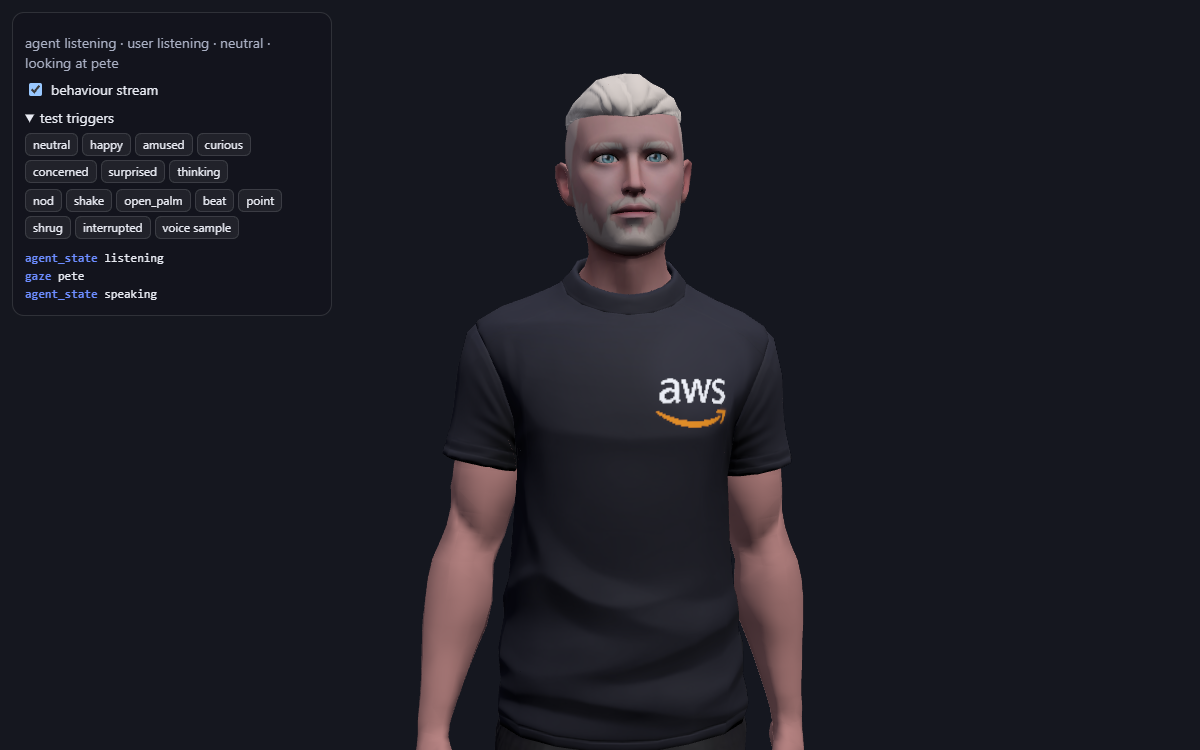
That’s my Ready Player Me avatar rather than the MetaHuman: a lightweight avatar that renders in the browser. Part 1 explains the switch.
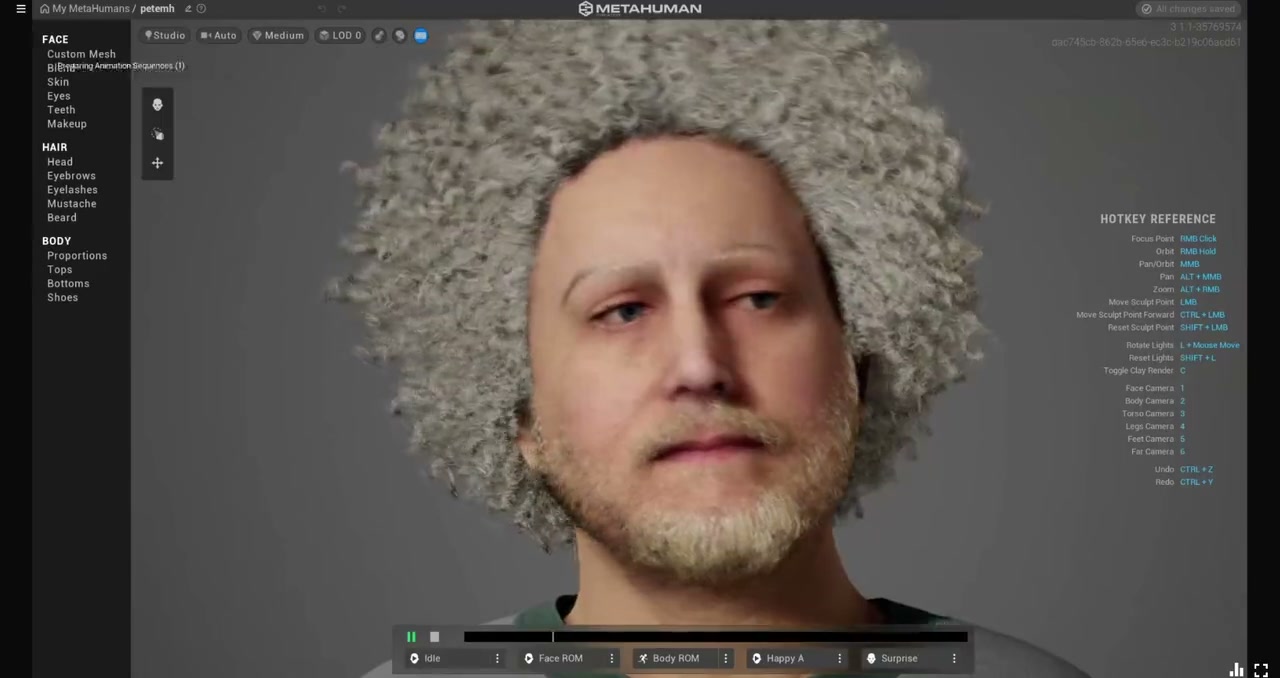
In part 1 I described the MetaHuman avatar I demoed at re:Invent 2024. It could talk, but it couldn’t show emotion or use its hands. In this post:
- the idea: a behaviour stream that travels alongside the agent’s voice
- getting a LiveKit voice agent running from scratch
- choosing the avatar’s voice, including cloning your own
The idea: a behaviour stream
A voice agent already sends audio. Lip sync can be worked out from that audio on whatever device is rendering the avatar. Body language can’t, because audio doesn’t tell you who the avatar should be looking at, or that it should shrug now.
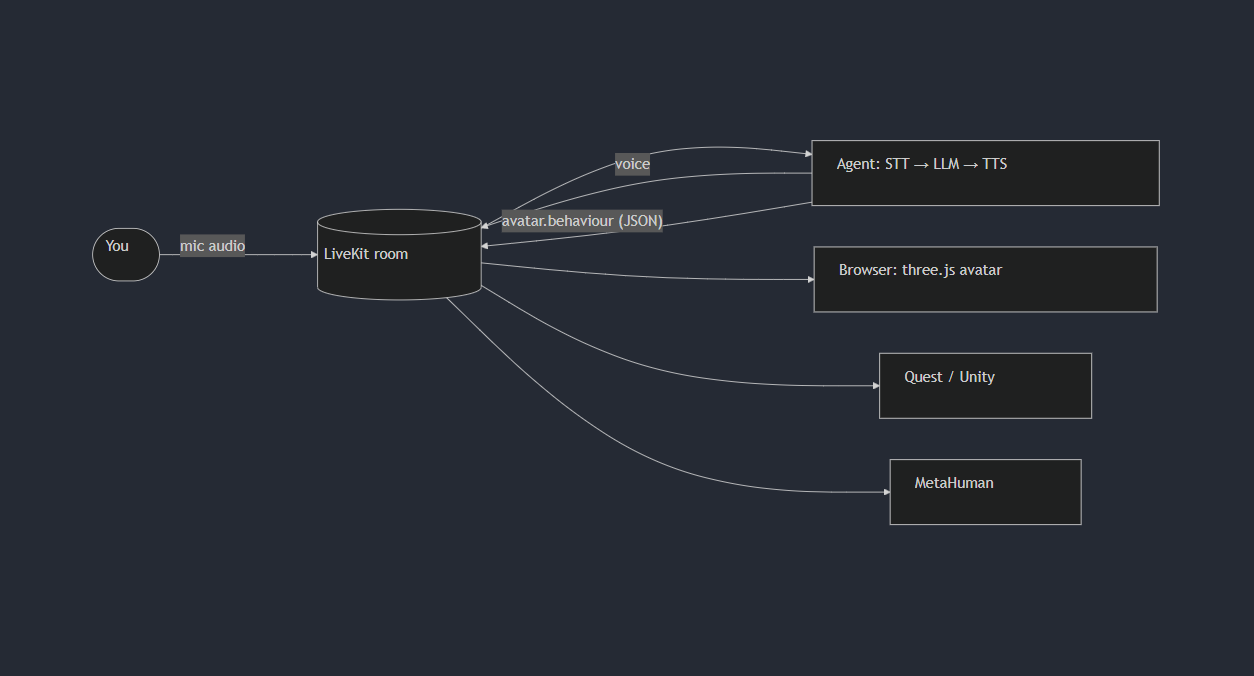
So the agent sends a second stream of small JSON messages next to its audio:
| Message | What the avatar does |
|---|---|
agent_state: listening, thinking, speaking |
attentive posture; glances away while thinking |
user_state: speaking, listening |
nods and back-channel expressions while you talk |
gaze: a participant’s identity |
turns its eyes and head toward that person |
emotion: happy, curious, concerned, … |
blends its face into that expression |
gesture: nod, shrug, point, open_palm, … |
plays the gesture, aimed at someone if given |
interrupted |
brows up, stops what it was doing, turns to listen |
Two design choices make this work across devices:
- Gaze targets are identities, not coordinates. “Look at Sam” means something different on Sam’s phone (look at the camera) than on someone else’s laptop (look toward Sam’s tile). Each renderer works it out locally.
- Renderers add their own life. Blinks, breathing, weight shifts, eye saccades and talking hand movements are generated on each device. The stream only carries what the device can’t guess.
The same stream can drive a three.js avatar in a browser, a Unity avatar on a Quest, or a MetaHuman, with each one interpreting it as it can.
Why LiveKit
LiveKit handles the hard real-time parts: WebRTC rooms that any number of people (and agents) can join, and an Agents framework that wires speech-to-text, an LLM, text-to-speech and turn detection into a voice pipeline. With LiveKit Inference, those models run behind one API key. There are no separate accounts for Deepgram, OpenAI or Cartesia.
It also has the piece the behaviour stream needs: text streams. An agent can send messages on a named topic to everyone in the room, alongside its audio.
Getting it running
The code is on GitHub: peted70/livekit-avatar.
You’ll need:
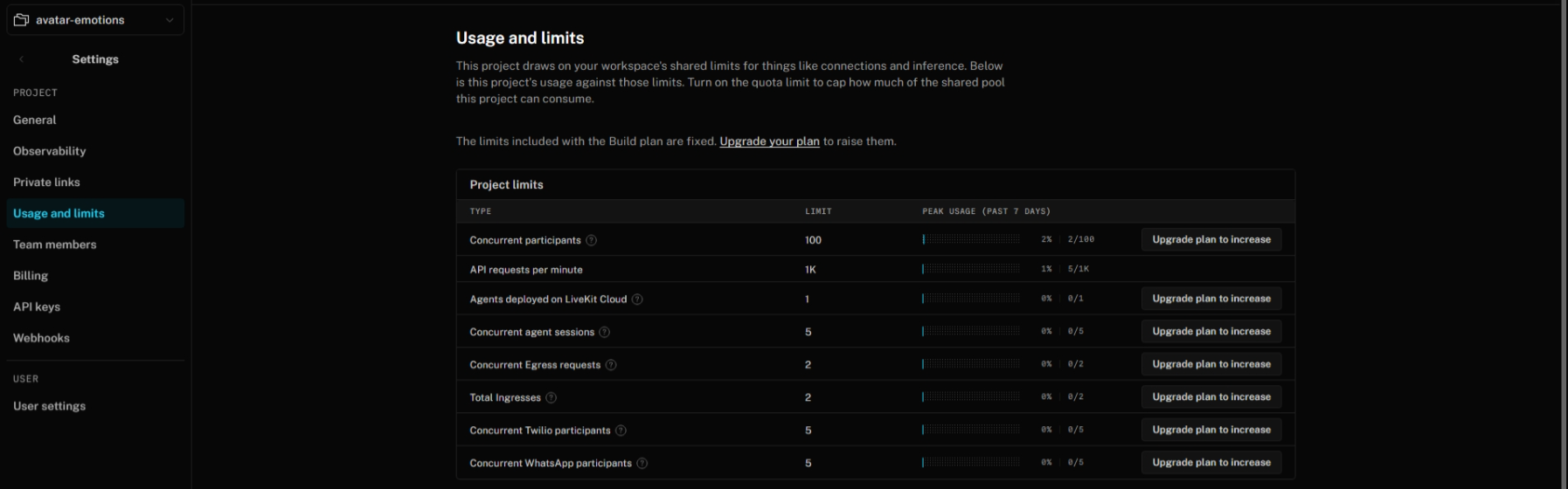
- a LiveKit Cloud account. The free Build plan is plenty for this: when I wrote this it allowed 100 concurrent participants, 5 concurrent agent sessions and 5 concurrent text-to-speech connections. Check Settings → Usage and limits for the current numbers.
- uv for the Python agent
- Node.js for the web client
1. Create a LiveKit Cloud project
Sign up at cloud.livekit.io and create a project.
Your project’s Overview shows its ID and region, plus shortcuts to agents, API keys, voices and usage:

2. Get your API key
In your project, open Settings → API keys and create a key. You need three values:
- the project URL (
wss://<your-project>.livekit.cloud) - the API key
- the API secret
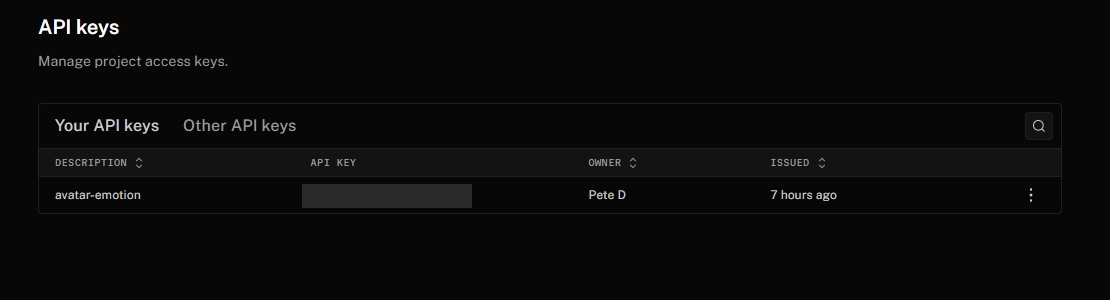
The secret only ever lives on a server: in the agent, and in the endpoint that hands out join tokens. It never goes to the browser.
3. Run the agent
git clone https://github.com/peted70/livekit-avatar.git
cd livekit-avatar/agent
cp .env.local.example .env.local   # paste in the URL, key and secret
uv run agent dev
uv run creates the virtual environment and installs everything the first time. When the agent has connected to LiveKit and is waiting for work, you’ll see:
INFO livekit.agents - registered worker {"agent_name": "avatar-agent-dev", "url": "wss://<your-project>.livekit.cloud", ...}
The agent is named. Named agents are only sent into rooms when someone asks for them, which keeps their traffic separate in the dashboard. Local development uses avatar-agent-dev, so your laptop never competes with a deployed copy called avatar-agent.
4. Run the web client
In a second terminal:
cd livekit-avatar/web
npm install
npm run dev
Open http://localhost:5173. The test triggers panel lets you try emotions and gestures without an agent, and voice sample plays a recorded sentence through the lip sync:
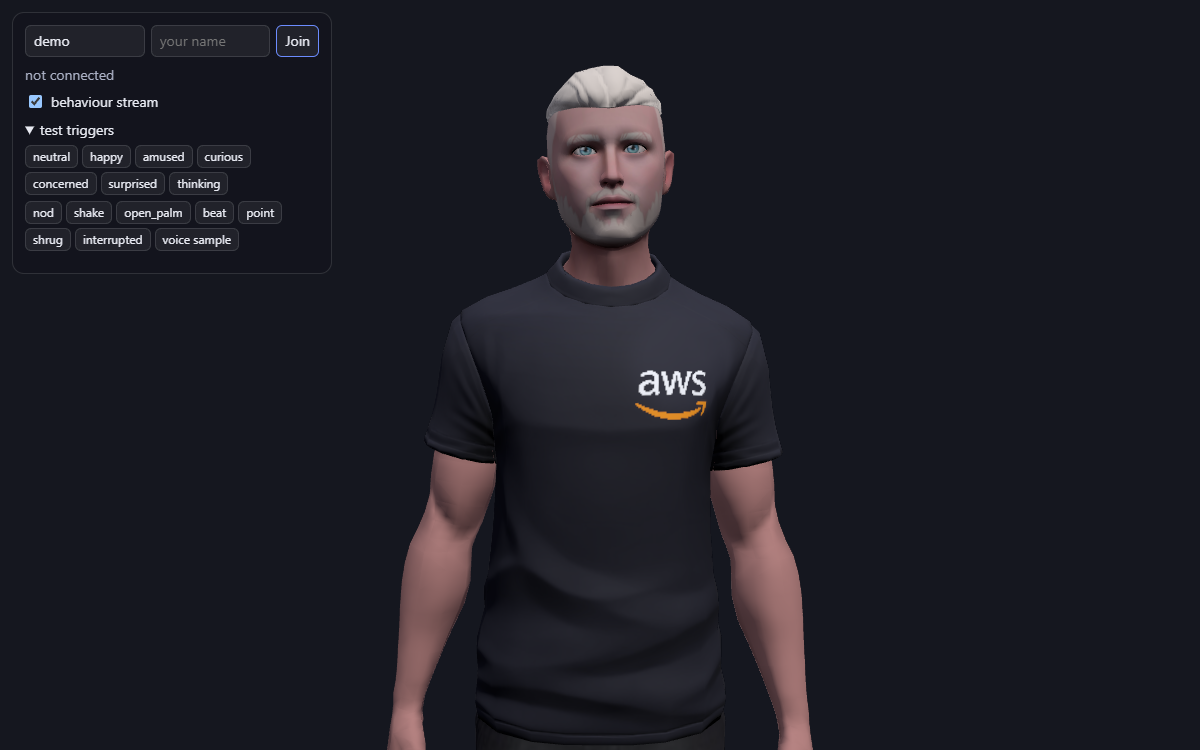
Click Join and allow the microphone. The page asks its own small server for a join token. That server also sends the agent into your room if it isn’t there yet. A second or two later the agent greets you, and the behaviour messages start arriving in the panel.
Back on the project overview, each named agent appears under Recently deployed agents, with its own session and worker counts. Here, avatar-agent-dev is my laptop and avatar-agent is the copy deployed to Azure. Insights counts the sessions served:
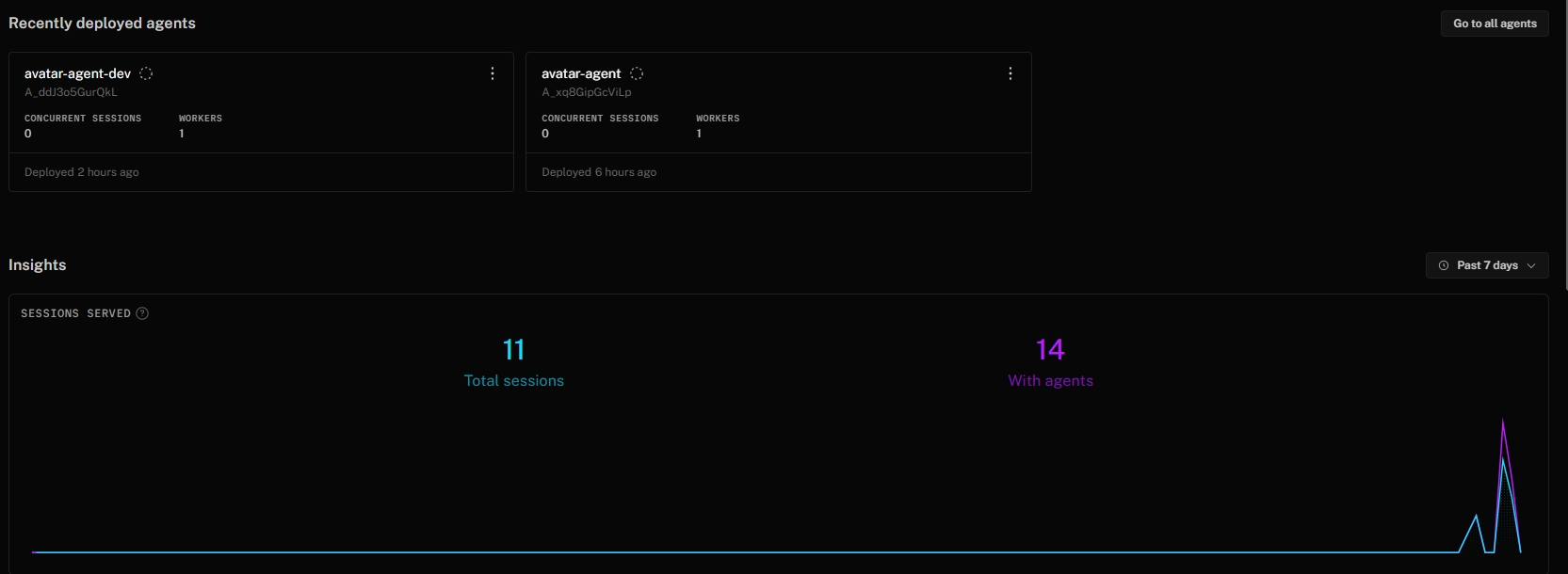
Open a second browser tab with a different name and talk from each in turn. The agent turns to whoever is speaking.
How the agent sends behaviour
The LLM is asked to tag its own replies. Every reply starts with an emotion, and it may add a gesture:
[emotion:amused] Ha, fair point. [gesture:open_palm] Here's how I'd think about it...
The agent intercepts the LLM’s output stream before it reaches text-to-speech. It pulls the tags out, even when one is split across two chunks, and sends each one as a behaviour message. The voice never says “bracket emotion amused”. Gaze, agent_state and user_state come from LiveKit’s own session events. So the avatar looks at the person speaking and glances away while thinking, without the LLM having to think about it.
Choosing the avatar’s voice
The agent uses Cartesia Sonic 3 through LiveKit Inference. The voice is set in agent/.env.local, so changing it needs no code:
AVATAR_VOICE=a167e0f3-df7e-4d52-a9c3-f949145efdab   # Cartesia "Blake", the default
AVATAR_TTS_MODEL=cartesia/sonic-3
Any voice from Cartesia’s standard library works.
Cloning your own voice
For an avatar of me, the obvious next step is my own voice. LiveKit can clone one from about 10 seconds of speech, but it needs a paid LiveKit Cloud plan (Ship or higher). I haven’t upgraded yet, so this series uses Blake for now. Here’s how it works:
- In the LiveKit Cloud dashboard, open your project and go to Voices → Custom voices.
- Click Create voice clone.
- Choose Record audio, which shows a script to read, or Upload file (MP3, WAV, OGG or WEBM, up to 4 MB).
- Speak clearly, at your normal pace and tone, somewhere quiet. Trim the clip if needed.
- Give the voice a name and choose its language. Only turn on Remove background noise if the recording is noisy, because it can slightly affect quality.
- Click Upload and clone voice, then review and accept the consent items.
- After about a minute, the clone appears with an ID like
v_AbC123….
Then point the agent at it:
AVATAR_VOICE=v_AbC123...
The clone is created for each provider your plan supports: Cartesia, Inworld, Fish Audio and Gradium. You can switch providers with AVATAR_TTS_MODEL and keep the same voice ID.
Sharing it
To test with someone else, I deployed the agent and the web client to Azure Container Apps with Terraform:
- The agent runs as an always-on container with no inbound access.
- The web client and token endpoint scale to zero when nobody is using them.
- The images are built in Azure Container Registry, so no local Docker is needed.
- The share link carries an access key, and the token endpoint rejects requests without it.
infra/deploy.sh builds and deploys, and infra/agent.sh stop stops the always-on agent between test sessions.
Next
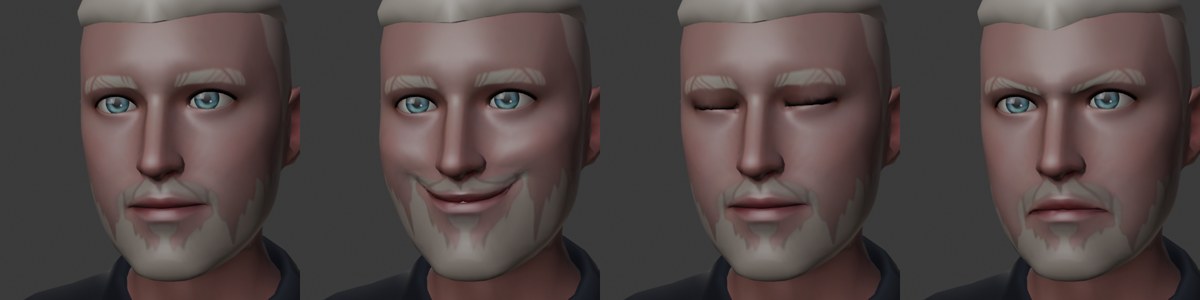
The avatar in these screenshots is my own Ready Player Me avatar, rescued from an old PowerPoint deck. When I started, it couldn’t smile, blink or even open its mouth. Part 3 is about giving it a face and a body that move.

Comments